

Cowork is a mode in Claude Desktop that lets you set up tasks, create projects, build skills, plug your agent into multiple connectors, and define ideas. It now also provides access to the Dispatch feature, which lets you grant Claude browser access and even pair it with your smartphone.
For the moment, Claude Desktop is only available for macOS users on the official website. It’s a bit sad that Anthropic, a software company, didn’t think about all the software engineers who use Linux on a daily basis.
The good part is that developers came up with an open-source integration, so you can still install it if you’re running a Linux distro like me.
In this piece, I show you how to install Claude Desktop on Linux and also guide you through how to use Dispatch.
Install Claude Desktop On a Linux Machine
Note that this setup was not tried on a VPS, which by default does not come with a Graphical User Interface (GUI).
But if you’re working on a Linux machine like me, you need to follow the steps in this section.
First, if you don’t have a Claude account yet, you need to subscribe to the Pro or Max plan to have access to Claude Cowork.
Now you can install Claude on your machine with this command:
curl -fsSL https://claude.ai/install.sh | bashThis will allow you to run Claude Code in your terminal.
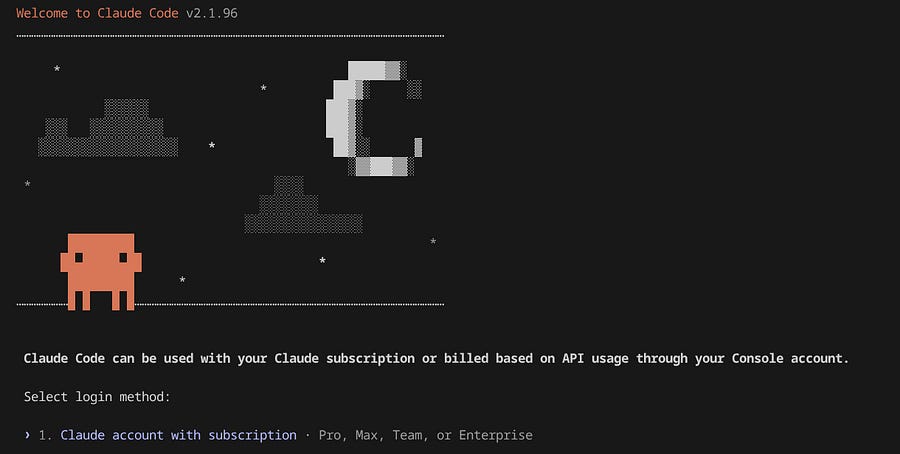
But you may not need Claude Code if you’re a marketer or sales professional. What you need is Claude Desktop for collaboration, and unfortunately, it isn’t officially available for Linux on the company’s website by default.
However, I found a GitHub repository with over 3,000 stars that lets you install Claude Desktop on multiple Linux distributions.
It repackages the official Windows application for Linux distributions, producing .deb packages (Debian/Ubuntu), .rpm packages (Fedora/RHEL), distribution-agnostic AppImages, an AUR package for Arch Linux, and a Nix flake for NixOS.
I’m using Fedora, so I ran these commands:
# Add the repository
sudo curl -fsSL https://aaddrick.github.io/claude-desktop-debian/rpm/claude-desktop.repo -o /etc/yum.repos.d/claude-desktop.repo

# Install
sudo dnf install claude-desktop
If you’re using Ubuntu:
# Add the GPG key
curl -fsSL https://aaddrick.github.io/claude-desktop-debian/KEY.gpg | sudo gpg --dearmor -o /usr/share/keyrings/claude-desktop.gpg

# Add the repository
echo “deb [signed-by=/usr/share/keyrings/claude-desktop.gpg arch=amd64,arm64] https://aaddrick.github.io/claude-desktop-debian stable main” | sudo tee /etc/apt/sources.list.d/claude-desktop.list
# Update and install
sudo apt update
sudo apt install claude-desktop
And that’s it! You just type claude-desktop, and you’re good to access Claude Cowork and Dispatch.
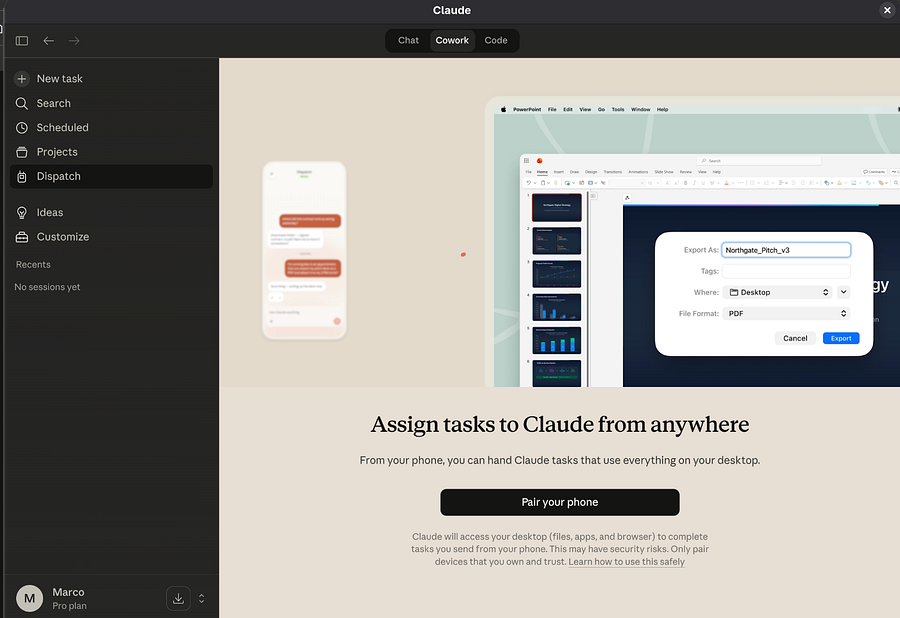
To pair your smartphone to Dispatch, you need to install the Claude app first, and then click Pair your phone.
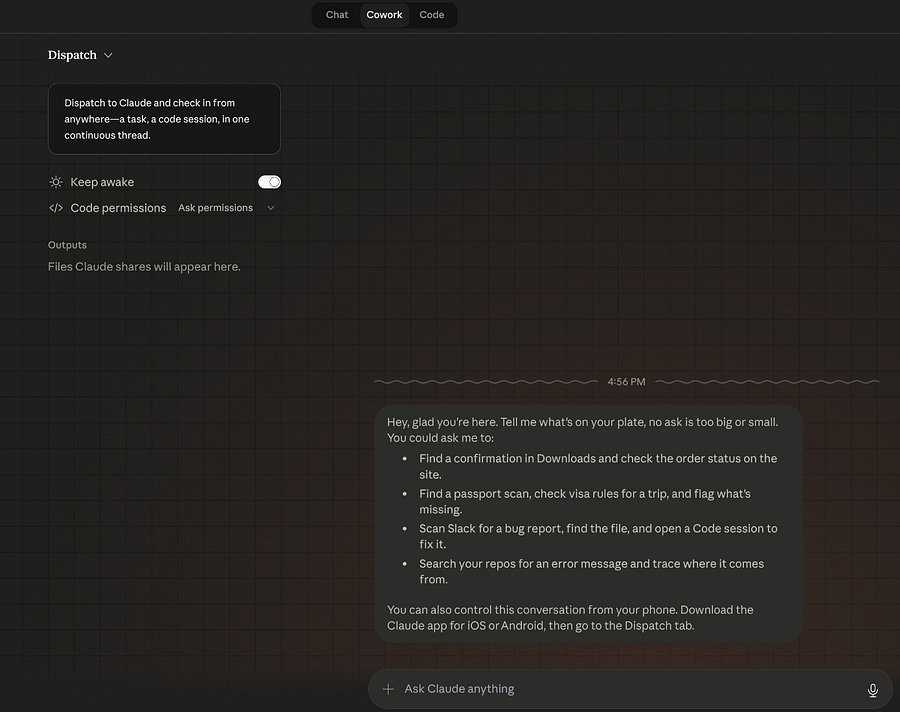
On your desktop, you need to ensure that your machine is always on. This is one of the main drawbacks of Claude Dispatch.
Now, let’s see some use cases!
Give Claude Dispatch Access to Browser Actions
If you want your agent to post on LinkedIn or X, fill out forms, and generally interact with websites, it can do all of that while standing in line at a café.
All you need is to enable Allow browser actions on Dispatch.
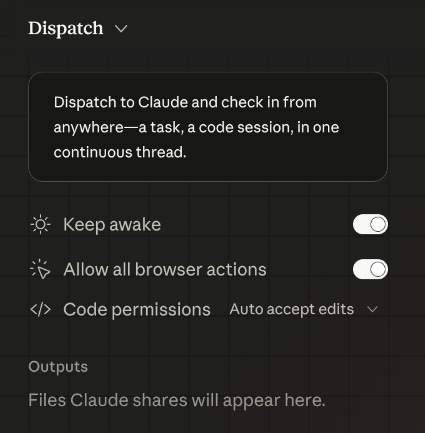
Sometimes this option isn’t visible (and this isn’t just an issue on Linux), so you may need to restart Claude Desktop or interact with it a bit until it appears. It’s a little buggy, I know.
After that, you need to install Claude’s Chrome extension:
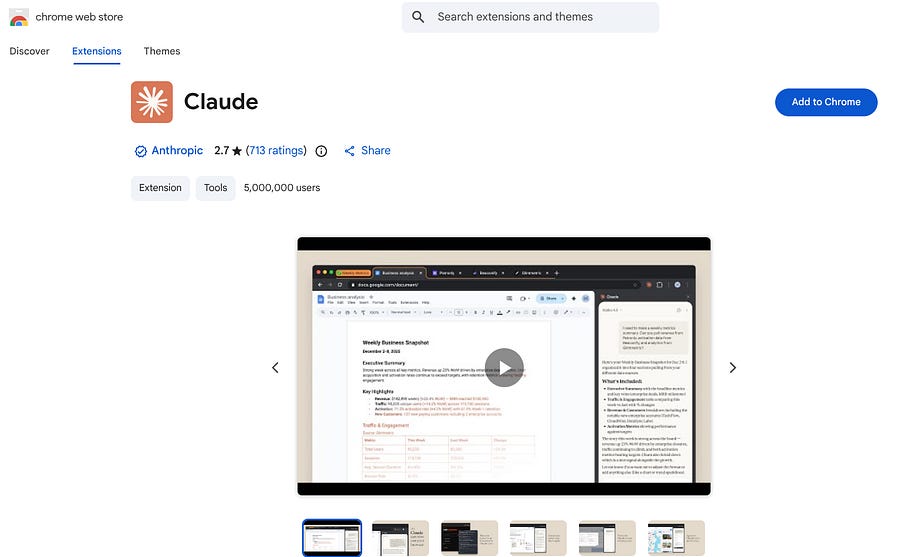
Once done, you’re now able to ask Claude to access the browser. But you need to have at least one tab already open, otherwise the Chrome extension does not instantiate.
There’s also something worth highlighting. You’ll be able to create new tabs, but if you already have other tabs open that you want to manage from your smartphone, such as a Google Sheet, you’ll need to manually drag them into the Claude group. Make sure to do this before leaving your home/office.
Now, I’m going to show an example where you can literally be walking on the street and ask Claude to write an article on Medium and publish it (with voice, please, do not write while walking! 😆).
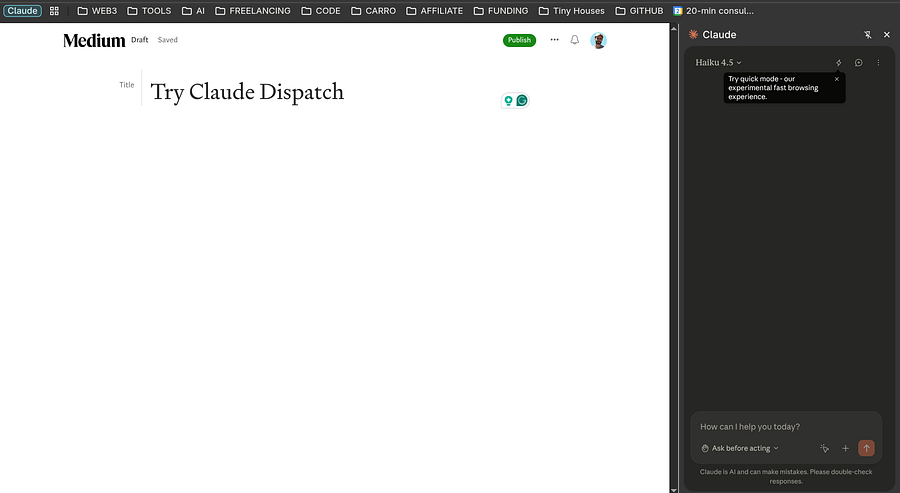
First, I created the Medium draft and added it to the Claude group. You should be able to see “Claude” at the top left of your tab and also the chat. If it is not there is because you’re outside of the group.
This is what I asked it to do:
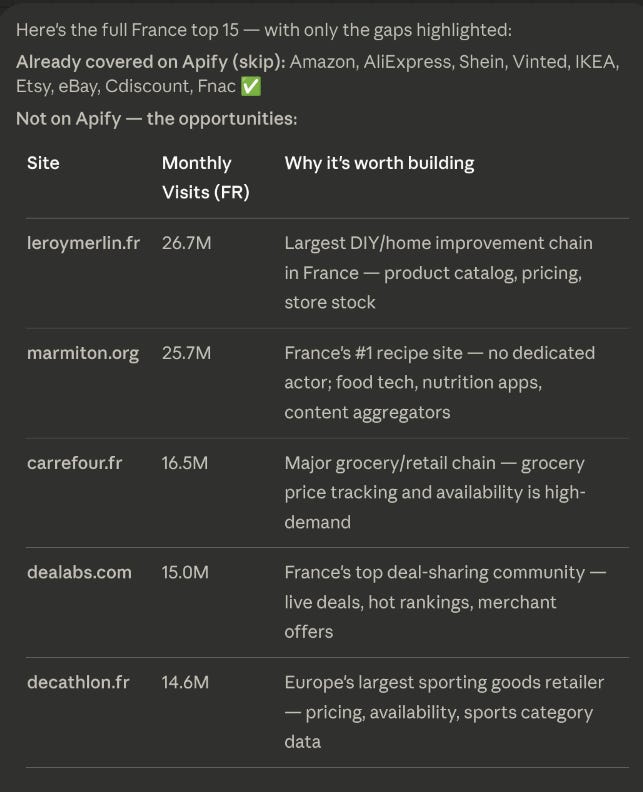
Hey Claude let’s do the following. You will open a tab for Perplexity (www.perplexity.ai) and search for the best e-commerce websites in France (up to 15). And you will open another tab for Apify (www.apify.com) and check if there are already web scrapers for those e-commerce websites on Apify.
Claude clearly followed my instructions and delivered me new opportunities on Apify:
I asked it to write the article:
Ok Cool can you write a Medium article with the title “Top 5 E-Commerce Websites Worth Building For Apify”. Also choose a subtitle. Make it between 1000 and 1500 words.
And then it started writing:
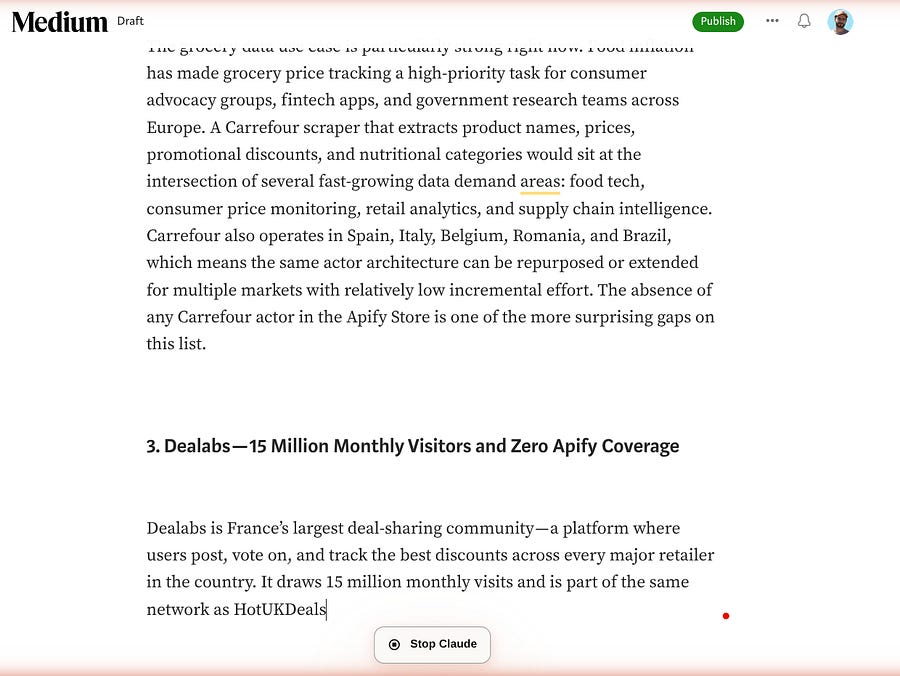
This feature is great, but browser interaction is not always the best approach for post automation. APIs are still the better option, as they offer more fine-tuning and control. However, it is extremely useful for accessing websites that do not provide an official API, such as Medium itself.
I also see it as a great tool for accessing Google Sheets and fetching data directly from them, especially when the goal is to quickly create sketches, charts, or even presentations.
Manage Data Inside Folders With Claude Dispatch
The browser feature is good, but if you’re working for a company, you’ll probably be using mostly local folders.
If your boss asks whether you can create a simple dashboard while he is in an important meeting and you’re away from your computer having lunch, what should you do?
Before, you would either interrupt your meal or tell him he needs to wait. With Claude Dispatch, you can simply pick up your smartphone and ask it to access the file containing the data your boss needs, create a sleek dashboard, and voilà!
While this is definitely possible, there are a few things you need to know.
First, Dispatch does not have access to all your folders by default, you need to add them in Projects.
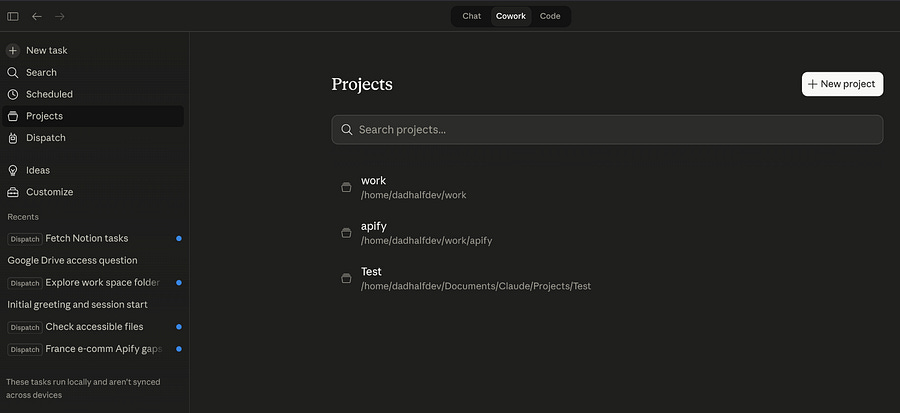
Now you can go back to Dispatch and ask Claude to interact with your folders. For instance, I told it to do this:
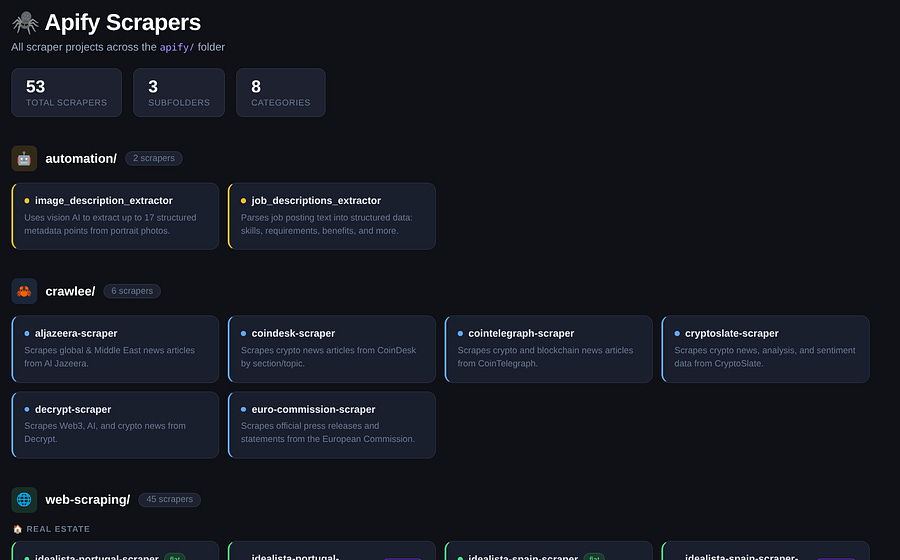
I need you to access the Apify folder and create an organized dashboard of all scrapers and automation tools I have.
The result was an HTML file that looks like this:
Now, let’s see how we can access external apps with Dispatch.
Skills, Plugins, and Connectors on Claude Dispatch
At this point, you can give Claude access to local folders and the web, but we are still missing the connectors, plugins, and skills.
All of the above can be found inside Customize.
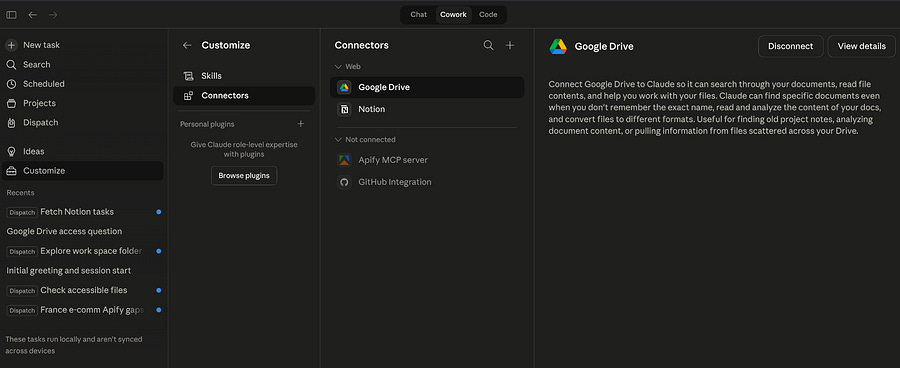
Skills are instructions (Markdown files) that can be created manually, or you can simply ask Claude to create them for you. For instance, in the previous example, we had Claude write a Medium draft, but it would be even better if it wrote more like a human and less like an AI. This can be improved with a skill file that is triggered the moment Claude starts writing.
Then there are plugins, which give Claude role-specific expertise. Think of them as a library of skills and connectors tailored to a specific role, such as accounting, human resources, sales, or marketing.
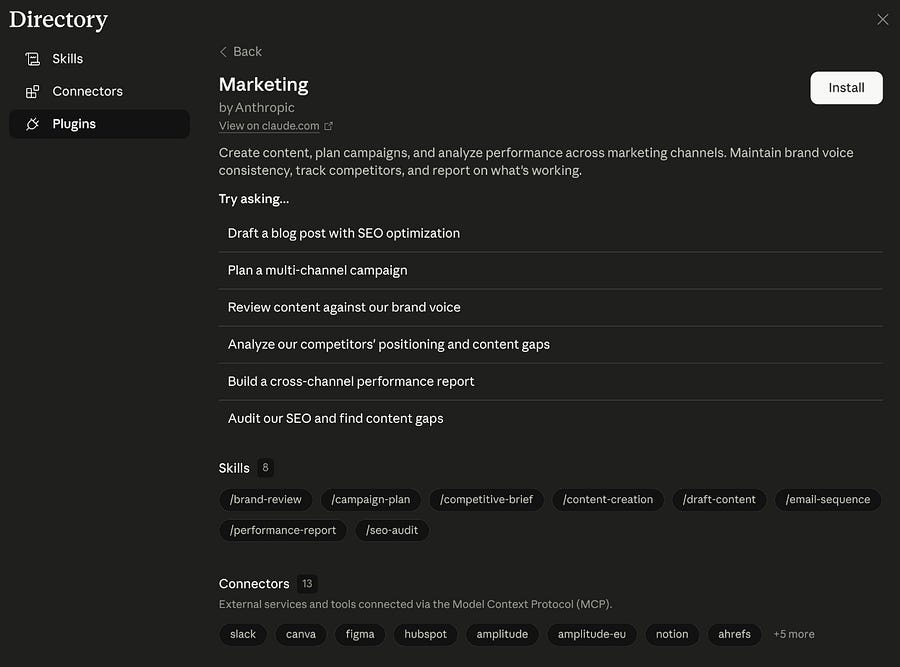
Finally, there are connectors, which are third-party apps that can be connected to your agent. As you can see above, plugins come with pre-installed connectors, but if you don’t select a plugin, you’ll need to install them yourself.
Let’s try it with Notion!
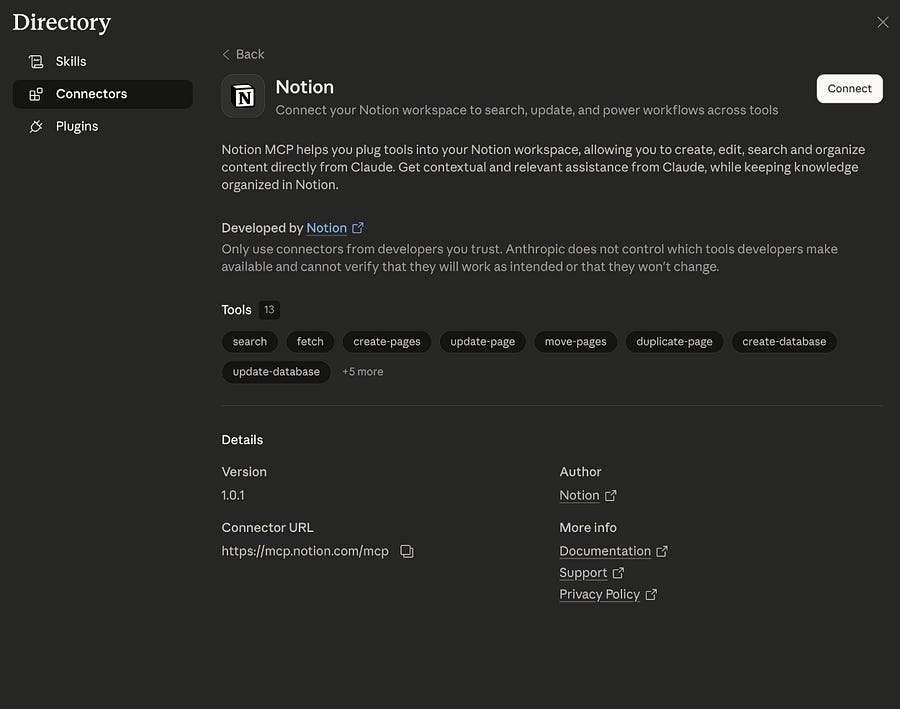
You may think that enabling the connector is enough to start interacting with it on Dispatch. Unfortunately, it is not so straightforward. You need to close your Dispatch session first. How? Yes, there’s no option like “create a new session” or something similar. Instead, you need to delete the conversation (at least that’s the only option I found).
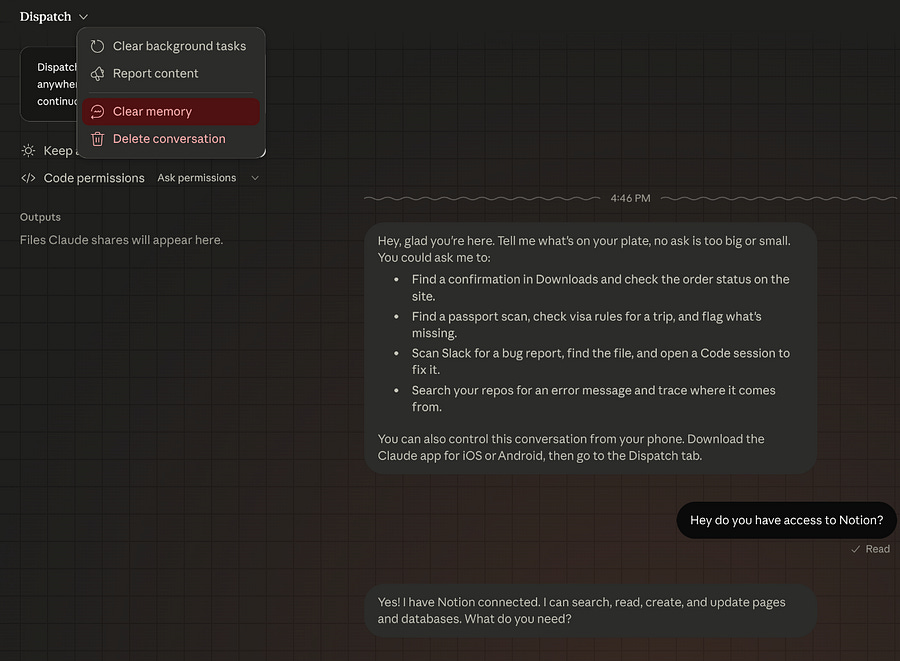
Once the session is restarted, you can now ask it about Notion, and you’re ready to connect.
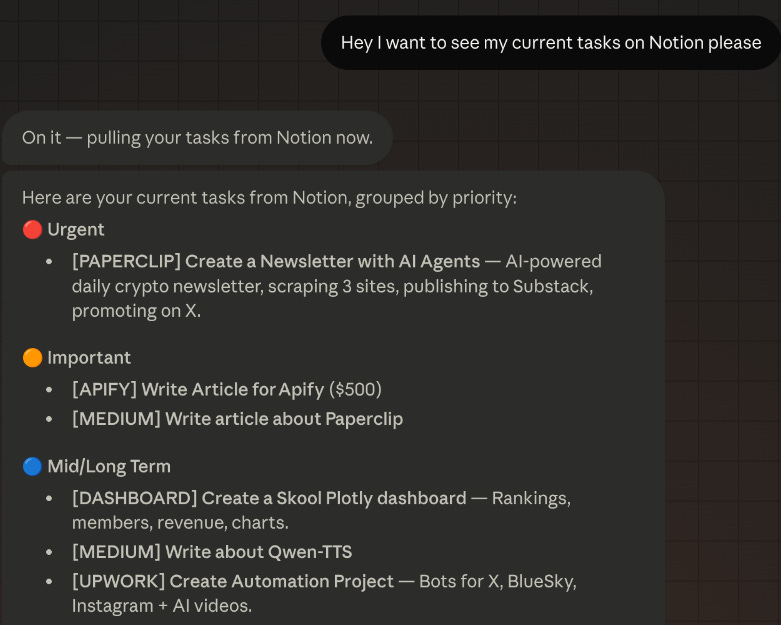
In the image above, you can see how Claude lists all my tasks by level of priority and in a user-friendly way. From now on, I can just take notes using Claude, I don’t even need my Notion app anymore, and this applies to many other apps.
If you need someone to help you and your team with Claude or open-source AI agents like OpenClaw or Hermes, let’s talk!
Conclusion
In this piece, we covered how to set up Claude Desktop on a Linux machine and explored three important use cases for Claude Dispatch.
The browser actions feature is impressive, but there are a few things you need to ensure before using it from your smartphone:
Your computer must always be turned on.
You need to install the Chrome extension.
You need to make sure the correct tabs are inside Claude’s web extension group.
These are three essential steps you should not forget before using this feature.
Also, keep in mind that the Pro version does not allow many browser actions. In fact, writing the Medium article was the only activity I was able to complete before reaching the daily limit.
The same thing happened when I built the dashboard for Apify, which suggests that the Pro version is overall quite limited. So while it can do many things, you always need to consider whether it is worth spending your credits on that task.
That’s why, before relying on browser actions, make sure the same task cannot be handled through connectors or skills instead (you may save credits that way).
It would also be interesting to test Claude Desktop on a remote machine, because having to leave your computer on all the time can be a bit inconvenient for most tasks. We didn’t cover that here, but it’s also worth noting that cron jobs (automated tasks) can only be triggered while the computer is running.
Claude Cowork is clearly a tool designed for less technical users who want things done quickly without using the terminal. At the same time, some of the points we covered make the onboarding process a bit slower than expected.
As a developer, I would rather connect Claude Code to Telegram or use OpenClaw or the Hermes Agent, but I understand that Dispatch can be a very powerful tool that brings AI Agents to many more people.
If you want to learn more about OpenClaw and the Hermes Agent, here are some articles worth reading:


