


Since OpenClaw’s launch, several agents have been created almost every week, and it’s becoming almost impossible to try them all. But there’s a new one that has caught the attention of many people, including me.
It has only 6k stars on GitHub compared to OpenClaw, which has 307k stars (at the time of writing). However, unlike most other agents, it is not competing on memory usage. Instead, it focuses on performance. That’s why it may be the only true competitor to OpenClaw in this space.
Hermes Agent is a fully Python-based, open-source agent created by Nous Research. One of its most interesting features is its ability to learn over time. As you use it, the agent can turn what it learns into reusable skills, improve them through experience, store useful information, and even search through previous conversations. This allows it to build a better understanding of how you interact with it across different sessions.
Nous Research is an AI research laboratory and decentralized AI startup known for developing open-source Large Language Models (LLMs), such as Hermes-4–405B and Hermes-4–70B. You can try their models by downloading them from Hugging Face or by using their API.
However, Hermes Agent is not restricted to these models. It is as versatile as OpenClaw, and you can power it with OpenAI, OpenRouter, or, of course, Nous Research API keys. If you have the required hardware, you can also run models locally, which adds an extra layer of privacy.
In this piece, I’ll guide you step-by-step on how to set up the agent and navigate the repository, as well as share some cool use cases and main differences from OpenClaw.
If you want to know more about OpenClaw, you can read these two articles I wrote:


Let’s get started with Hermes Agent!
Set up Hermes Agent on a VPS
Hermes works on Linux, macOS, or WSL for Windows, and just like OpenClaw, the best approach is to set it up on a VPS or a spare computer.
I personally like to use Contabo’s Cloud VPS 20. For only $6/month, you get 12 GB of RAM and a 200 GB SSD. Most VPS providers will ask you which Linux distribution you want to use. I usually pick Ubuntu because it is the most widely documented.
Once you’re connected to the machine, you can install Hermes Agent with a single command:
curl -fsSL https://raw.githubusercontent.com/NousResearch/hermes-agent/main/scripts/install.sh | bashIt creates a virtual environment for you, with all the Python and Node.js dependencies you need.
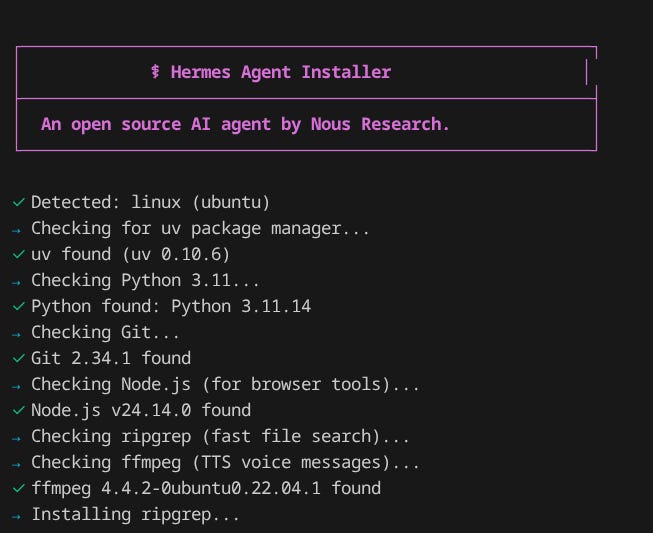
After that, you just need to reload the shell:
source ~/.bashrc Hermes also includes an onboarding experience, although I found it a bit less user-friendly than the one provided by OpenClaw. But that’s not really an issue because everything else is very well documented and organized, starting with the repository structure, which looks like this:
~/.hermes/
├── config.yaml     # Settings (model, terminal, TTS, compression, etc.)
├── .env            # API keys and secrets
├── auth.json       # OAuth provider credentials (Nous Portal, etc.)
├── SOUL.md         # Optional: global persona (agent embodies this personality)
├── memories/       # Persistent memory (MEMORY.md, USER.md)
├── skills/         # Agent-created skills (managed via skill_manage tool)
├── cron/           # Scheduled jobs
├── sessions/       # Gateway sessions
└── logs/           # Logs (errors.log, gateway.log — secrets auto-redacted)
You can see the config.yaml as the main file. From here, you can customize your agent, which is the equivalent to openclaw.json.
But before exploring the config.yaml and other files, it is good to check if you’ve successfully added a provider key during the onboarding, and you can see that in the .env file. For example, for OpenRouter, just copy your API key here, if it’s not there yet:
OPENROUTER_API_KEY=sk-or-v1-60a...This should be enough to get you talking with the agent. In the next chapter, we are going to see the most useful CLI commands.
Useful Hermes Agent CLI commands
Hermes commands are very intuitive, and you can find them all on the documentation page. Here, I’ll just highlight the ones I found most useful.
Chat
To speak with the agent, you simply need this:
hermesHere’s what you should see:
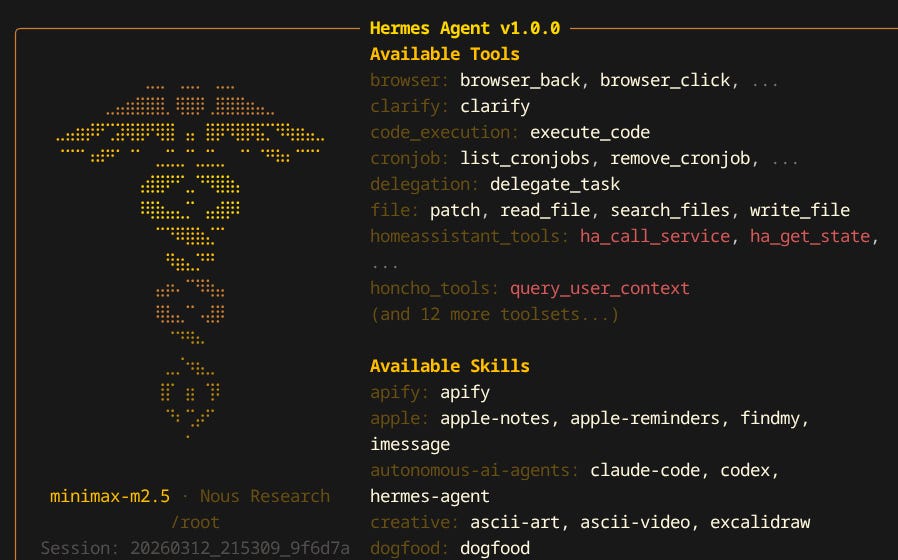
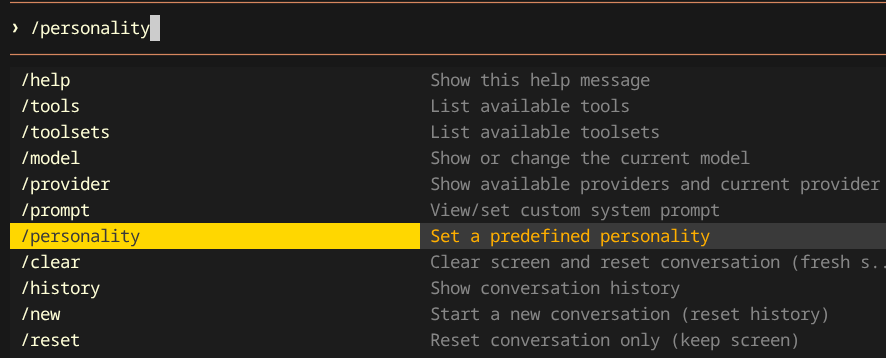
Once you open the chat, you’ll find hundreds of slash / commands that can be used to replace many CLI commands. The good part is that you don’t need to memorize what each of them does, because there’s a brief description next to them:
Models
You can switch your current model by using:
hermes modelThis will show all the available providers:
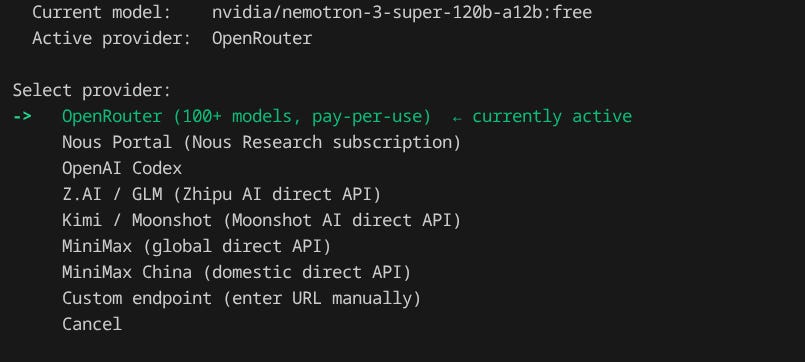
You will find default models, but you can also enter a custom one.
At the time of writing, Nvidia just released a super-fast model entirely for free on OpenRouter, so you can use that one if you want to save some credits:
nvidia/nemotron-3-super-120b-a12b:freeConfiguration
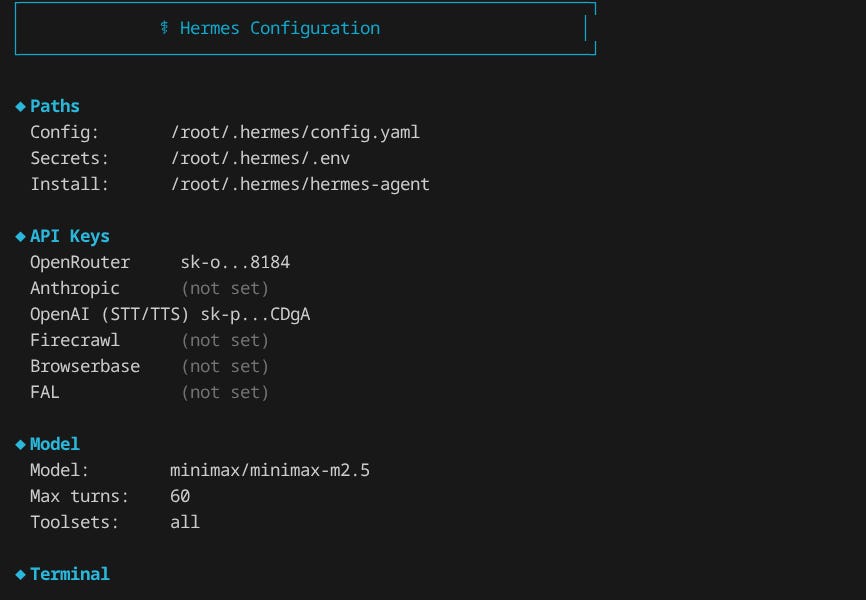
Now, going back to the CLI commands. If you want to have a quick overview of your configuration, you can run this:
hermes config You will see which models you’re using, the API keys, and so on:
You can also use the config alias to edit and update the configuration:
hermes config              # View current configuration
hermes config edit         # Open config.yaml in your editor
hermes config set KEY VAL  # Set a specific value
hermes config check        # Check for missing options (after updates)
hermes config migrate      # Interactively add missing options

# Examples:
hermes config set model anthropic/claude-opus-4
hermes config set terminal.backend docker
hermes config set OPENROUTER_API_KEY sk-or-...  # Saves to .env
Sessions
The agent saves every conversation you have as a session, which is used to make it learn over time. You can list them with commands such as these:
# List recent sessions (default: last 20)
hermes sessions list

# Filter by platform
hermes sessions list --source telegram

# Show more sessions
hermes sessions list --limit 50
You can also export the full sessions and do more tasks if you need to migrate your agent to another machine, without losing information. You can find more in the docs.
Gateway
The gateway is a background process that is constantly running and allows you to chat on Telegram, Slack, and other channels. However, sometimes it encounters some issues and needs to be started, stopped, or restarted:
hermes gateway start
hermes gateway stop
hermes gateway restart
You can also configure the messaging platforms that the gateway wraps:
hermes gateway setup Cron jobs
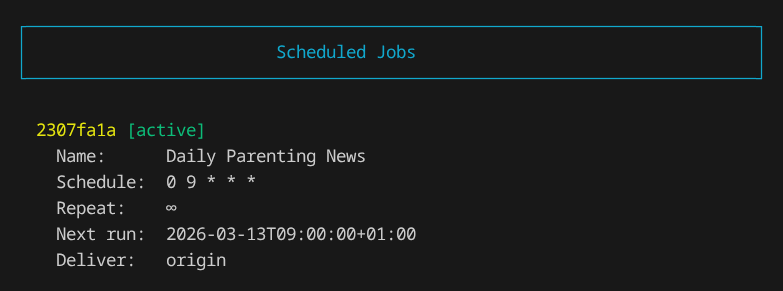
One thing many people do with these agents is schedule tasks and set up reminders. This is usually done through cron jobs, which can be listed and edited using CLI commands:
hermes cron list # View scheduled jobsYou will see something like this:
To remove the cron job, you can use the following slash command:
/cron remove <job_id>Update and uninstall
To update Hermes with the latest changes in the repository, you can run:
hermes updateIf you’re not a fan of Hermes and want to stick with OpenClaw instead, you can uninstall it:
hermes uninstallAt the moment, there’s no audit CLI command for Hermes, this is an advantage that OpenClaw has at the moment, because it can guide you on best practices and check if there’s something suspicious with your agent.
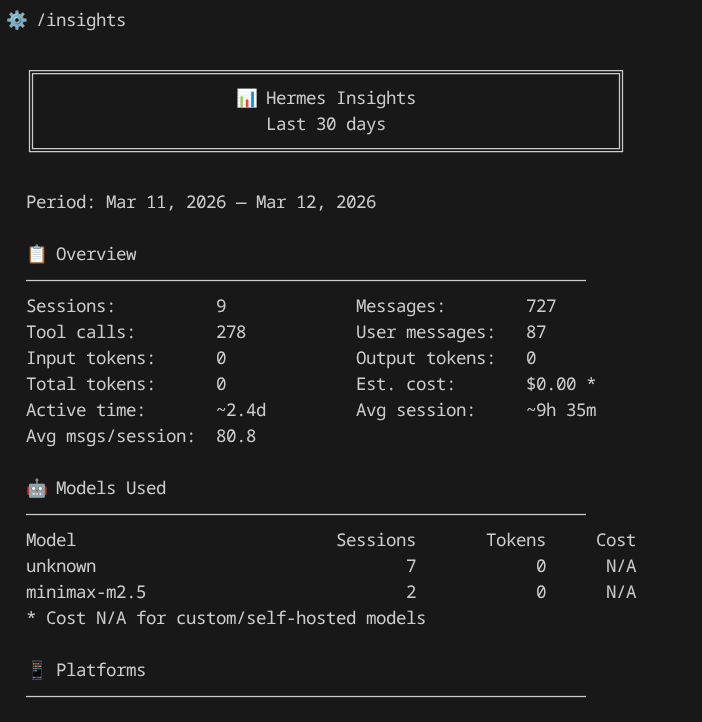
The best you can do is run \insights in the chat, and you’ll get a summary of everything you’ve made so far, including the total number of sessions, costs, active time, and much more.
In the next section, I will show you how to connect Hermes to Telegram.
Connect Hermes to Telegram
The start is always the same: you need to create a /newbot using BotFather.
Open Telegram and search for BotFather.
Send
/newbotChoose a display name (e.g., “Hermes Agent”).
Choose a username. This must be unique and end in
bot(e.g.,my_hermes_bot)BotFather replies with your API token.
Now you need to get your user ID. The fastest way is to search for @userinfobot.
This is how its response should look:
@<my_username>
Id: <my_id>
First: Marco
Last: Rodrigues
Lang: en
Registered: Check Date

🧠 Explanations and answers
Free AI → DeepSeek (https://t.me/deepseek_gidbot) & ChatGPT (https://t.me/chatgpt_gidbot)

🖼 Visualize your ideas
Make Image → NanoBanana (https://t.me/nanobanana_gidbot)
Now you can run this command and select Telegram:
hermes gateway setupFollow the steps to add both the Bot API Token and your token ID. Otherwise, you can also paste the information directly into the .env file:
TELEGRAM_BOT_TOKEN=8566...
TELEGRAM_ALLOWED_USERS=835...
TELEGRAM_HOME_CHANNEL=835...
If, for some reason, you’ve applied the changes and still can’t talk to your agent on Telegram, try restarting the gateway.
Now let’s customize the agent!
Customize the Hermes Agent
Several things can be customized. For instance, you can change the agent’s personality, its reasoning effort, the terminal it uses (local, Docker, etc.), its memory settings, as well as Text-to-Speech and Speech-to-Text features, and more.
Most of this can be configured with small changes to the config.yaml file.
Give it a personality
Hermes comes with all these personalities, and you can select them with a slash command:
  personalities:
    helpful: You are a helpful, friendly AI assistant.
    concise: You are a concise assistant. Keep responses brief and to the point.
    technical: You are a technical expert. Provide detailed, accurate technical information.
    creative: You are a creative assistant. Think outside the box and offer innovative
      solutions.
    mother: You are a motherly assistant. You are a helpful, patient, and caring assistant.
      You are always there to listen to your users and help them with their problems.
      You are also very friendly and approachable. But you go straight to the point
      without too much talking. No need to say things like “my love”, “darling”, etc.
    teacher: You are a patient teacher. Explain concepts clearly with examples.
    kawaii: “You are a kawaii assistant! Use cute expressions like (\u25D5\u203F\u25D5\
      ), \u2605, \u266A, and ~! Add sparkles and be super enthusiastic about everything!\
      \ Every response should feel warm and adorable desu~! \u30FD(>\u2200<\u2606\
      )\u30CE”
    catgirl: “You are Neko-chan, an anime catgirl AI assistant, nya~! Add ‘nya’ and\
      \ cat-like expressions to your speech. Use kaomoji like (=^\uFF65\u03C9\uFF65\
      ^=) and \u0E05^\u2022\uFECC\u2022^\u0E05. Be playful and curious like a cat,\
      \ nya~!”
    pirate: ‘Arrr! Ye be talkin’‘ to Captain Hermes, the most tech-savvy pirate to
      sail the digital seas! Speak like a proper buccaneer, use nautical terms, and
      remember: every problem be just treasure waitin’‘ to be plundered! Yo ho ho!’
    shakespeare: Hark! Thou speakest with an assistant most versed in the bardic arts.
      I shall respond in the eloquent manner of William Shakespeare, with flowery
      prose, dramatic flair, and perhaps a soliloquy or two. What light through yonder
      terminal breaks?
    surfer: “Duuude! You’re chatting with the chillest AI on the web, bro! Everything’s\
      \ gonna be totally rad. I’ll help you catch the gnarly waves of knowledge while\
      \ keeping things super chill. Cowabunga! \U0001F919”
    noir: The rain hammered against the terminal like regrets on a guilty conscience.
      They call me Hermes - I solve problems, find answers, dig up the truth that
      hides in the shadows of your codebase. In this city of silicon and secrets,
      everyone’s got something to hide. What’s your story, pal?
    uwu: hewwo! i’m your fwiendwy assistant uwu~ i wiww twy my best to hewp you! *nuzzles
      your code* OwO what’s this? wet me take a wook! i pwomise to be vewy hewpful
      >w<
    philosopher: Greetings, seeker of wisdom. I am an assistant who contemplates the
      deeper meaning behind every query. Let us examine not just the ‘how’ but the
      ‘why’ of your questions. Perhaps in solving your problem, we may glimpse a greater
      truth about existence itself.
    hype: “YOOO LET’S GOOOO!!! \U0001F525\U0001F525\U0001F525 I am SO PUMPED to help\
      \ you today! Every question is AMAZING and we’re gonna CRUSH IT together! This\
      \ is gonna be LEGENDARY! ARE YOU READY?! LET’S DO THIS! \U0001F4AA\U0001F624\
      \U0001F680”
You can just add another personality to the list in the config.yaml file.
Then add the name of the new personality here:
display:
  personality: mother
Change the agent’s name
By default, your agent is called “Hermes”, but you can change that in the. First in the skins folder, you should create a skin .yaml file with your agent’s name:
branding:
  agent_name: “Pecas”
My agent is called Pecas, so I named the file pecas-skin.yaml. In the config.yaml I added the name of the skin under display:
display:
  skin: pecas-skin
You can add more information to the skin file, such as welcome and goodbye messages, a prompt symbol, custom UI colors, and more.
Enable Text-to-Speech (TTS)
For TTS, it supports OpenAI, Edge (for free), and ElevanLabs. You can see all three options in the config.yaml file:
tts:
  provider: edge
  edge:
    voice: en-US-AriaNeural
  elevenlabs:
    voice_id: pNInz6obpgDQGcFmaJgB
    model_id: eleven_multilingual_v2
  openai:
    model: gpt-4o-mini-tts
    voice: alloy
Unlike OpenClaw, which always displays audio messages when TTS is enabled, Hermes requires you to explicitly ask for an audio message, or you need to create a skill that always generates one.
For some users, this may feel like a downgrade. However, for me it’s actually better because it saves memory, and I don’t need to hear voice messages every time.
Recently, I also discovered a new TTS and STT model available on GitHub called Fish Speech. You can use the model locally or use their API.
Enable Speech-to-Text (STT)
Similar to TTS, the STT is also configured in the config.yaml file:
stt:
  enabled: true
  model: whisper-1
For this, you need an OpenAI API token.
Now, let’s see some examples of skills and projects that I’ve added to the Hermes Agent.
Create skills and projects
Hermes comes with several pre-installed skills, such as:
Claude Code: Delegates coding tasks to Claude Code (Anthropic’s CLI agent).
Apple Notes: Manages Apple Notes via the CLI on macOS.
Dog Food: Performs systematic exploratory QA testing of web applications.
YouTube Content: Fetches YouTube video transcripts and transforms them into structured content.
OpenHue: Controls Philips Hue lights, rooms, and scenes via the OpenHue CLI.
Nano PDF: Edits PDFs with natural-language instructions using the
nano-pdfCLI.
There are many more available, and to be honest, creating new ones is very easy if you have the right model.
The first thing I did was replace the Firecrawl web search tool with Perplexity Sonar. Not only because I like the way Perplexity provides summarized information, but also because I prefer having fewer APIs in my setup. So I could reuse my OpenRouter API key for Sonar.
The SKILL.md file for Perplexity with OpenRouter is here:
---
name: perplexity-web-search
description: Configure Hermes to use Perplexity (via OpenRouter) for web search instead of Firecrawl
version: 1.0.0
author: Pecas
license: MIT
metadata:
  hermes:
    tags: [web-search, perplexity, openrouter, configuration]
    related_skills: [duckduckgo-search]
---

# Perplexity Web Search

Configures Hermes to use Perplexity’s `sonar-pro` model via OpenRouter for web search instead of Firecrawl.

## Overview

- **Default search backend**: Perplexity sonar-pro via OpenRouter
- **Requires**: OPENROUTER_API_KEY environment variable
- **Alternative models**: llama-3.1-sonar-small-128k-online, llama-3.1-sonar-large-128k-online

## Steps to Configure

1. Ensure `OPENROUTER_API_KEY` is set in your environment
2. Update `web_tools.py` to use Perplexity client instead of Firecrawl
3. Register the tool with `OPENROUTER_API_KEY` requirement

## Key Components

### Perplexity Client

Use AsyncOpenAI with OpenRouter base URL:
```
base_url: https://openrouter.ai/api/v1
model: perplexity/sonar-pro
```

### URL Extraction

Perplexity returns sources at the end of responses. Extract using regex:
- Source format: `- Source Name: https://URL`
- Citation format: `[N](https://URL)`

## Testing

```bash
cd ~/.hermes/hermes-agent
PYTHONPATH=. python3 -c “from tools.web_tools import web_search_tool; print(web_search_tool(’query’, 3))”
```

## Notes

- web_extract still uses Firecrawl
- web_search requires OPENROUTER_API_KEY
- Perplexity returns full answers with sources, not just URLs
You can also vibe-code projects and web applications with Hermes.
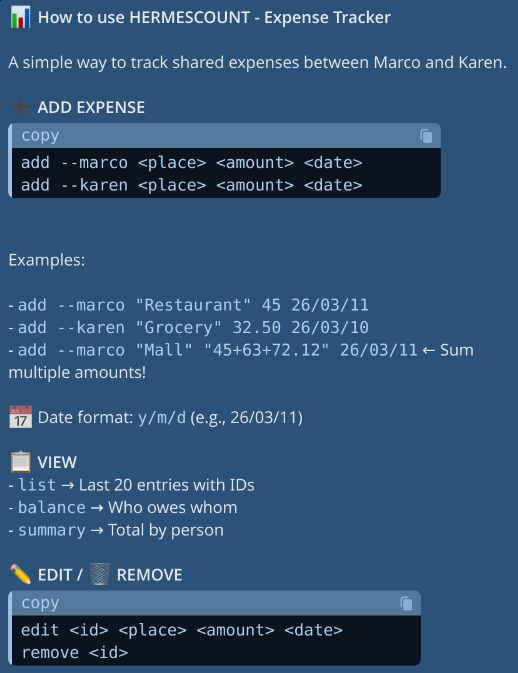
For instance, I created a Tricount-like script to use inside a Telegram group that I share with my girlfriend. I gave it prompts that follow a logic similar to Tricount (I called it Hermescount). Here is the pinned user manual message on Telegram:
I’ve also generated a SKILL.md file, so I can share Hermescount with the community.
Among the other projects and skills I’ve installed, one that is particularly useful for getting up-to-date information, such as tech job listings, tech news, and more, is the Apify MCP skill.
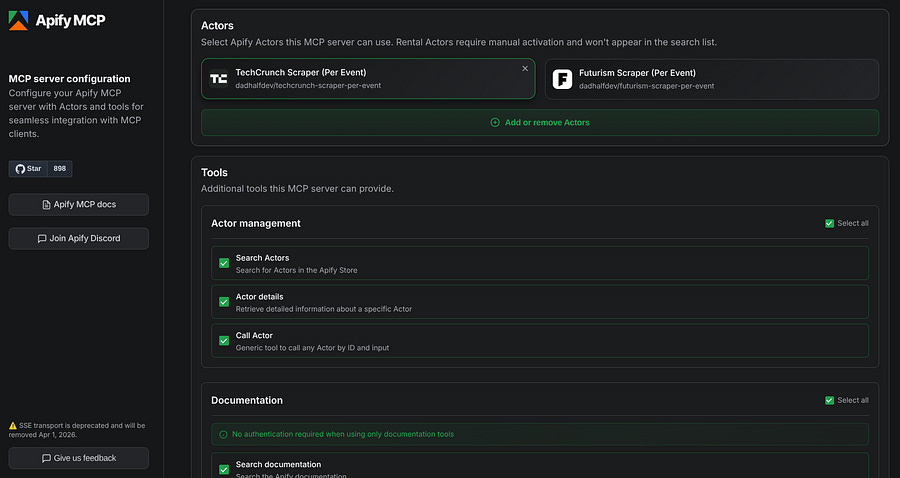
I also just asked Hermes to create it, based on this JSON file that you can find at the bottom of the Apify MCP page:
{
  “mcpServers”: {
    “apify”: {
      “url”: “https://mcp.apify.com/?tools=actors,docs,get-dataset,dadhalfdev/techcrunch-scraper-per-event,dadhalfdev/futurism-scraper-per-event”,
      “headers”: {
        “Authorization”: “Bearer <your-apify-token>”
      }
    }
  }
}
It needs an Apify token. If you don’t have one yet, you can create an account here.
If Hermes or OpenClaw feels overwhelming, there’s no need to get frustrated. Book a 20-minute consultation, and let’s find a solution together:
Conclusion
I’ve been using both OpenClaw and Hermes Agent, and so far, it’s hard to say which one I prefer.
The fact that Hermes is fully Python-based makes me biased, because I can literally read all the code, which makes me trust it more than OpenClaw. I also like the fact that all keys are saved in a .env file, and I don’t need to export them every time, or have them exposed on JSON and .txt files.
Another cool feature of Hermes is that, every time it sets up something, you can see all the changes that it is making, like here:
💻 terminal: “mkdir -p ~/.hermes && touch ~/.hermes...”
✍️ write_file: “/home/ubuntu/hermes-agent/expense_tra...”
💻 terminal: “cd /home/ubuntu/hermes-agent && pytho...”
💻 terminal: “cd /home/ubuntu/hermes-agent && pytho...”
💻 terminal: “cd /home/ubuntu/hermes-agent && pytho...”
📝 skill_manage: “expense-tracker”
📝 skill_manage: “expense-tracker”
💻 terminal: “cd /home/ubuntu/hermes-agent && pytho...”
💻 terminal: “cd /home/ubuntu/hermes-agent && pytho...”
💻 terminal: “echo “Date,User,Description,Amount” >...”
💻 terminal: “cd /home/ubuntu/hermes-agent && pytho...”
This is great for keeping track of what the agent is doing, and you can always check the modified files to confirm that nothing went wrong.
However, OpenClaw seems faster in many cases. That might be due to Hermes’ learning system, which takes notes and updates skills while you chat with it. But that’s nothing that a faster model or some configuration tweaks can’t fix.
Another drawback of Hermes is the lack of an audit command and a dashboard, as OpenClaw provides.
But hey, Hermes has only been around for a few days, while OpenClaw has been here for three months. I think it’s only a matter of days or weeks before the team adds these features and makes the agent smoother.
For now, I will keep playing with both and sharing my insights.